
This article covers the migration process for moving to StreamGuys’ hosted RetailPlayer portal.
Beginning July 1st, 2026, Barix is ceasing operations of the free RetailPlayer portal. StreamGuys is the recommended solution if you would like to continue with a managed hosting solution.
Premium vs Basic
The previously free RetailPlayer portal is now called the “Basic” plan. The paid “RetailHero” version is now called the “Premium” plan. If you previously did not pay for the service, then Basic will be exactly the same functionality. The functionality of the product is not changing as part of this migration.
Basic and Premium are separate portals, so the below instructions apply to migrations in general. That migration could be from Barix to StreamGuys, or between Basic and Premium if you choose to upgrade in the future.
Manual vs Automated Migration
There are two options for migrating, manual and automated. If you have a large number of devices and do not wish to manually move them to the new portal, we can provide an automated migration service that will export your account from the Barix hosted portal and import your account into the StreamGuys hosted portal.
If you have a smaller number of devices or prefer to move them manually, you can migrate manually at your own pace.
If you choose to migrate automatically, Barix and StreamGuys will coordinate to automatically migrate your account. This will be done once you sign the agreement and pay for the service.
Manual Migration Instructions
The below instructions guide you on a manual migration.
- On the Barix portal, manage.barix.com, ensure all the devices required to migrate are updated to v7.0.4 of the firmware.
- StreamGuys will provide login instructions to the correct StreamGuys portal, depending on your subscription to the Basic or Premium plan.
- Once you have access, you can start creating channels and channel lists. This makes sure you can immediately assign music channels to the units when you move units over.
- Move devices:
-
- Copy the MAC Address of the device that needs to be removed
- Remove the device from manage.barix.com by clicking on the “bin” icon and confirming the removal -> At this point the Portal sends a reset command to the device which reboots the unit
- Immediately add the device on the StreamGuys portal -> It’s important to do this right after removing the device from the Barix portal because the device with FW v7.0.4 checks the Flexa Registry 5 minutes after boot to know to which portal it needs to connect with, and the registry knows this only when the device is added to the new portal. You only have 5 minutes to add the device to the StreamGuys portal after removing it from the Barix portal.
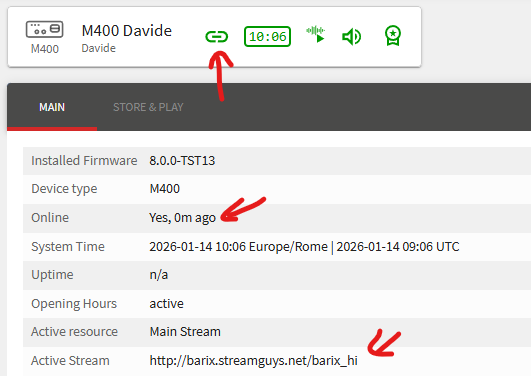
- Wait for the device to connect with the streamguys portal – you know the device is connected from the online / offline status.. When online it looks like this:
- NOTE: we assume the device is not being blocked by local firewalls in reaching:
- the Flexa registry over HTTPS at flexa-base.azurewebsites.net
- the StreamGuys Portal
-
- Continue this process for all units.
- Migration complete!
Here is a video showing this migration process: https://www.loom.com/share/3580af512c9f484689b605106ed416d6
Important Note: If a device is OFFLINE when it is removed from the Barix portal it won’t receive the RESET command, so it won’t reboot.
OFFLINE devices removed from the portal must be power cycled / rebooted manually to force them to connect with the Flexa Registry to find out their Portal URL.
So the process for OFFLINE devices is:
- Remove from Barix Portal
- Add into StreamGuys Portal
- Manually power cycle / reboot the device and wait 5 to 6 minutes
If you have further questions, contact StreamGuys support.